> For the complete documentation index, see [llms.txt](https://cookbook.denovolab.com/llms.txt). Markdown versions of documentation pages are available by appending `.md` to page URLs; this page is available as [Markdown](https://cookbook.denovolab.com/configuration/integrate-class-4-to-google-smtp.md).

# Integrate Class 4 to Google SMTP

Class 4 supports different type of SMTP server prover but since Google has special process for SMTP setting, we are writing a section here.&#x20;

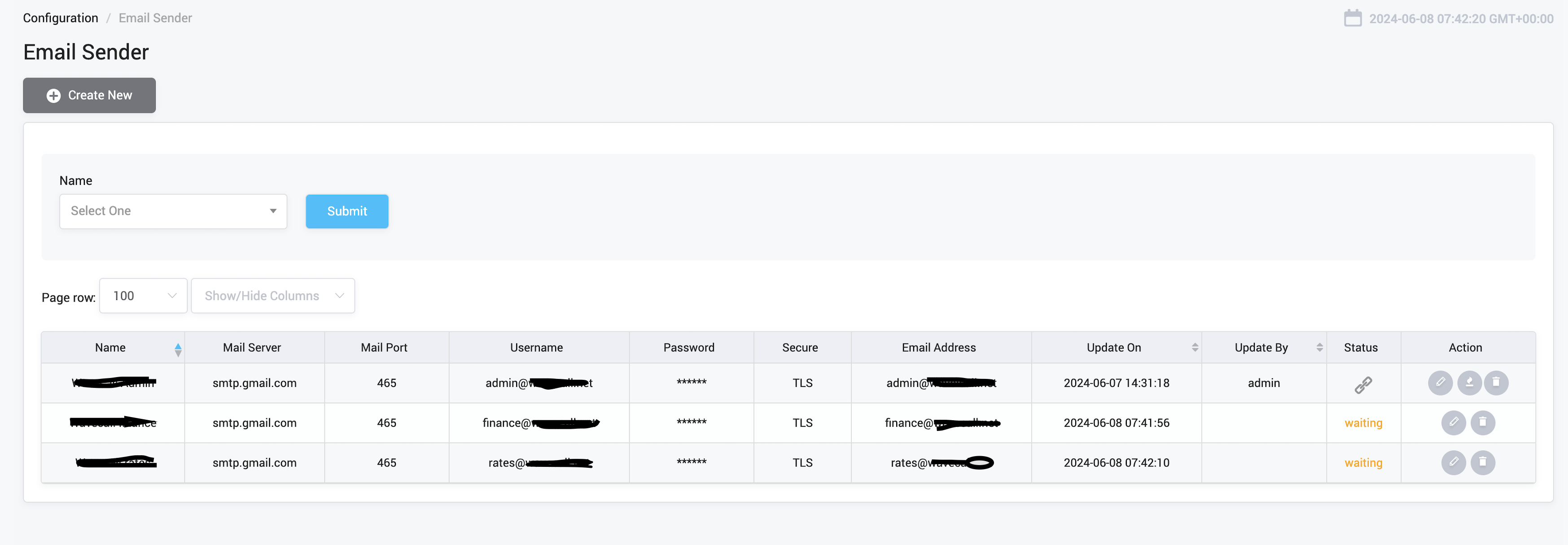
You can configure Mail Sender under Configuration menu:

<figure><img src="/files/PTc7ui7jafZ8LJgWGbuT" alt=""><figcaption></figcaption></figure>

Then here is what you get:

<figure><img src="/files/wsAqN4NiDf3finMZD63S" alt=""><figcaption></figcaption></figure>

## Configure Google Mail Account

Step 1 Login to your Google Mail Account

<figure><img src="/files/Kt2C6osxWOUGnaOuYMdt" alt=""><figcaption></figcaption></figure>

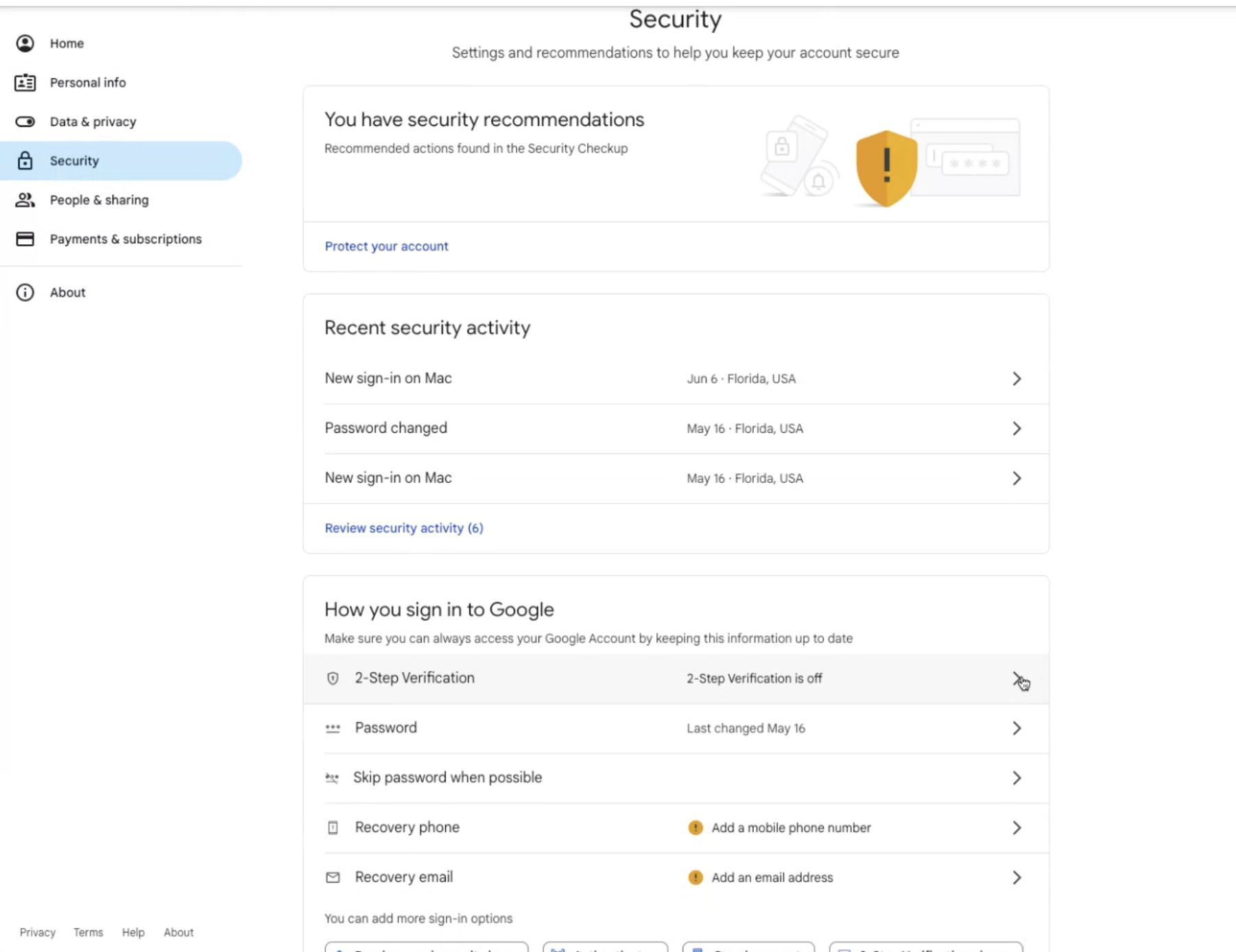
Step 2 Go to Data & Privacy

<figure><img src="/files/Ef13VhYNiARu7xxp8rGe" alt=""><figcaption></figcaption></figure>

Step 3 Turn off 2-Step Verification&#x20;

<figure><img src="/files/Ts0PBmn7fLOqTCO4iK3m" alt=""><figcaption></figcaption></figure>

Step 4 Google may request you to enter phone number to turn off 2-Step Verification

<figure><img src="/files/iDsWJzs89R8zq9tKEW8Y" alt=""><figcaption></figcaption></figure>

Step 5 Add a Security Key

<figure><img src="/files/Vn0Fisfr5jBuuV4iXfkk" alt=""><figcaption></figcaption></figure>

Step 6 Add a APP Password

To create a APP Password, you go to <https://myaccount.google.com/apppasswords>

You may need to turn on 2-Factor Authenticator to be able to create APP Password.

<figure><img src="/files/AyBzO2XvVS5KNZtbQgR7" alt=""><figcaption></figcaption></figure>

Step 7 Enter a "App name" and generate a APP Password

<figure><img src="/files/U5Nycs7ET42WLNRulRkC" alt=""><figcaption></figcaption></figure>

Step 8 Store the backup code in a safe place

<figure><img src="/files/icAlJetR5gBPMVosfeoS" alt=""><figcaption></figcaption></figure>